The 6 Best Triple Monitor Docking Stations in 2026

Transparency Note: This post contains affiliate links. As an Amazon Associate, we earn from qualifying purchases at no extra cost to you.

Triple Monitor Docking Stations let you run three external displays from one laptop connection. For buyers, that usually means stable video output plus enough USB ports for your keyboard, mouse, headset, and daily storage needs. It also means the dock must handle normal work behavior like sleep and wake, without dropping a screen.

Picking the right dock is hard because triple display support often comes with trade-offs. Some docks share bandwidth across ports. Others only work well at certain resolutions or refresh rates. Power delivery matters too, because a dock that charges weakly or cuts out under load will quickly frustrate daily use.

Use this guide to compare docks based on real setup needs, not just feature lists. Looking for all types? See our Best Docking Stations.

Quick Overview

Anker Nano 13-in-1 Docking Station
#1 Anker Nano 13-in-1 Docking Station
Plugable 13-in-1 USB C Docking Station
#2 Plugable 13-in-1 USB C Docking Station
WAVLINK 13-in-1 USB-C Docking Station
#3 WAVLINK 13-in-1 USB-C Docking Station
WAVLINK USB-C Triple Display Docking Station
#4 WAVLINK USB-C Triple Display Docking Station
MOKiN 11/13-in-1 Desktop Docking Station
#5 MOKiN 11/13-in-1 Desktop Docking Station
Dell D3100 Triple-Display Docking Station
#6 Dell D3100 Triple-Display Docking Station

Our Top Picks

#1. Anker Nano 13-in-1 Docking Station

Anker Nano 13-in-1 Docking Station
Our Score
8.0 / 10
hover for details
Performance
7.6
Connectivity
8.2
Power
8.1
Compatibility
8
Value
8.2
BrandAnker
Host ConnectionUSB-C
Max Displays Supported3 Displays
Video Output Ports2 x HDMI, 1 x DisplayPort
Power Delivery100 W
Usb Ports Total5 Ports
Ethernet Speed10 Gbps
Memory Card ReaderSD/microSD
  • Stable PD under load
  • Reliable sleep/wake behavior
  • Well-balanced workstation ports
  • Mac mirroring limitation
  • Adapter-spec search friction

For triple-monitor desk setups, this Anker dock stands out for how consistently it stays stable while you work. With USB-C host support and 3-display output using 2 x HDMI and 1 x DisplayPort, it is a strong fit for the typical “laptop closed, monitors on” routine. Users also report steady power delivery while peripherals are running, which matters when the dock is handling video, storage, and charging at the same time.

The main trade-off is compatibility around macOS mirroring, which can limit the way displays behave compared to Windows. Also, if you do not already have the right cable or adapter for your laptop, figuring out the exact setup can take a little trial and error. This dock is best for people who want reliable multi-monitor behavior and a straightforward workstation port mix.

→ Read full review

#2. Plugable 13-in-1 USB C Docking Station

Plugable 13-in-1 USB C Docking Station
Our Score
7.8 / 10
hover for details
Performance
7.6
Connectivity
7.9
Power
8
Compatibility
7.9
Value
7.8
BrandPlugable
Host ConnectionUSB-C, Thunderbolt
Max Displays Supported3 Displays
Video Output Ports3 x HDMI, 3 x DisplayPort
Power Delivery100 W
Usb Ports Total4 Ports
Memory Card ReaderSD
  • Stable PD under load
  • Supports three+ monitors
  • Fast high-watt charging
  • Too few USB ports
  • HDCP unsupported
  • Mac DisplayLink dependency

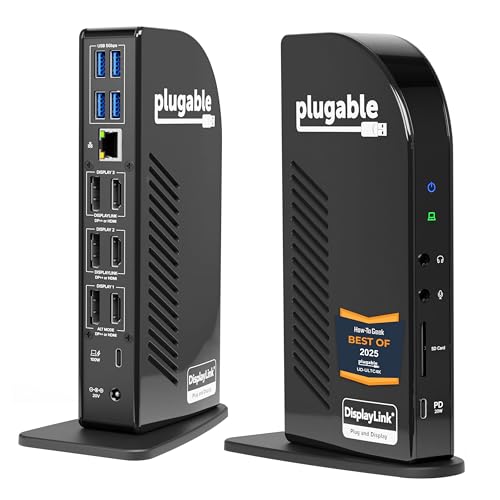
This Plugable dock stands out for triple-monitor setups that stay stable while you work. It supports three displays using 3 x HDMI and 3 x DisplayPort, and it keeps power steady with 100 W USB-C charging under load. In day-to-day use, that matters because many triple-monitor docks struggle once the laptop is charging and multiple screens are active.

The main trade-off is practical. The dock has only 4 USB ports total, so you may still need a hub for extras like a webcam, card reader, or USB accessories. Also note the display security limit: HDCP is unsupported, and Mac users may rely on DisplayLink for the multi-monitor experience.

#5. MOKiN 11/13-in-1 Desktop Docking Station

MOKiN 11/13-in-1 Desktop Docking Station
Our Score
7.5 / 10
hover for details
Performance
7.4
Connectivity
7.6
Power
7.5
Compatibility
6.7
Value
8.4
BrandMOKiN
Host ConnectionUSB-C
Max Displays Supported3 Displays
Video Output Ports2 x HDMI, 1 x DisplayPort
Max Resolution Supported3840 x 2160 @ 60 Hz
Power Delivery100 W
Usb Ports Total5 Ports
Ethernet Speed1 Gbps
Memory Card ReaderSD/microSD
  • Supports three+ monitors
  • Fast high-watt charging
  • 4K+ clarity
  • Too few USB ports
  • Gigabit-limited networking

If you want triple-monitor work without giving up laptop charging, the MOKiN 11/13-in-1 is a solid fit. It supports three displays up to 3840 x 2160 @ 60 Hz using 2 x HDMI and 1 x DisplayPort. At the same time, it runs a 100 W USB-C power delivery setup, so your notebook stays powered while you use the dock all day. For multi-screen desks, that mix of 3-monitor output plus real charging headroom makes it stand out from many simpler docks.

The main trade-off is the rest of the setup around it. With only 5 total USB ports, you may hit a shortage for a keyboard, mouse, external drive, and other daily items. Networking is also capped at 1 Gbps Ethernet, which is fine for web and office files but less ideal for heavy transfers. This model works best for people focused on three-monitor productivity and stable charging, not for those who need lots of extra USB connections.

#6. Dell D3100 Triple-Display Docking Station

Dell D3100 Triple-Display Docking Station
Our Score
7.3 / 10
hover for details
Performance
7.4
Connectivity
7.4
Power
6.5
Compatibility
7.2
Value
8.1
BrandDell
Host ConnectionUSB-C
Max Displays Supported3 Displays
Video Output Ports1 x HDMI, 2 x DisplayPort
Max Resolution Supported3840 x 2160 @ 60 Hz
Power Delivery65 W
Ethernet Speed1 Gbps
  • Supports three+ monitors
  • 4K+ clarity
  • Charging slows during use
  • Gigabit-limited networking

The Dell D3100 stands out for people who want three-screen work with clear 4K output. It combines one HDMI and two DisplayPort connections to reach up to 3840 x 2160 at 60 Hz, which helps when your laptop needs a real monitor upgrade for spreadsheets, dashboards, or side-by-side research. In daily use, the 65 W USB-C power is enough to keep a typical setup running while you work, so you are not swapping cables as you move between desks and rooms.

The main trade-off is on the details that matter during long sessions. Charging can slow while the dock is under load, and the Ethernet tops out at 1 Gbps, which may feel limiting if you rely on large file transfers or fast local networks. This is a solid fit for a standard office triple-monitor routine, especially if you want straightforward setup using USB-C and you are not trying to push ultra-high-speed networking.

What to Look For

Triple-display reliability: Confirm the dock supports 3 displays with the exact resolution and refresh rate you plan to use. Prioritize docks that keep all three screens stable during wake from sleep and video playback, not just during first-time setup.

Video output mix that matches your monitors: Check the dock ports for HDMI and DisplayPort types you can connect to easily. If your monitors use different input types, make sure the dock includes the right combinations so you do not depend on hard-to-troubleshoot adapters.

Power delivery headroom: Look for strong USB-C power delivery so your laptop charges while all three monitors run. If you use a power-hungry notebook, choose a dock with enough wattage to avoid slow charging or disconnects when peripherals are active.

Useful port set for a desk setup: Triple monitor docks should give you enough USB ports for everyday use, plus Ethernet if you need stable connection for calls or large downloads. If you rely on file transfers, make sure the dock includes the right storage options like an SD or microSD reader.

Compatibility with your laptop and OS: Verify the dock works smoothly with your host type, and expect differences between Thunderbolt and USB-C docks. Choose models known for plug-and-play behavior on Windows, with fewer sleep and wake issues when you switch monitors often.

How We Picked

Products were identified through broad research across review sites and buyer forums. We then filtered down to only models that function as Triple Monitor Docking Stations for real work setups.

We scored each option with the same objective pillar framework used in the main Docking Stations post. That means Performance, Connectivity, Power, Compatibility, and Value drive the ranking, and the scores stay comparable across this specific triple-monitor group.

Frequently Asked Questions

Do triple monitor docking stations always support three monitors at once?

Not always. Many docks can run three displays, but only with the right laptop graphics and the right ports. Check the dock specs for the max displays supported and the supported resolutions at that three-monitor count. If the dock uses MST, your setup may also depend on your laptop model.

What specs should I check for reliable triple monitor performance?

Start with max displays supported and max resolution at three screens. Then check the refresh rate, like 60 Hz, and the video output types, like DisplayPort and HDMI. Also confirm the dock can handle charging while the monitors run. If the dock shares bandwidth across ports, you may see drops or lower quality.

Will my laptop charge while I use triple monitors?

Usually, but only if the dock has enough USB-C power delivery. Look for a listed power delivery rating in watts. Also confirm the dock supports pass-through charging while video is active. If your laptop has higher power needs, a lower watt dock may charge slowly.

How do I know if triple monitors will work on my laptop?

You need a USB-C or Thunderbolt host connection that supports the dock's display method. Many triple monitor docks work best with newer Intel or AMD laptops and the correct USB-C port. Test your planned monitor resolutions, not just screen count. Sleep and wake issues can happen if the dock or laptop firmware is out of date.

When should I choose a dual or single monitor docking station instead of a triple monitor dock?

Choose a simpler dock if you only need two or one screens, or if you want fewer compatibility issues. Triple setups can be more sensitive to laptop graphics limits and display settings. A dual monitor dock may offer steadier performance at higher resolutions. Pick triple only when you truly need three active displays every day.

See Also

Share:
On Key
You Might Also Like