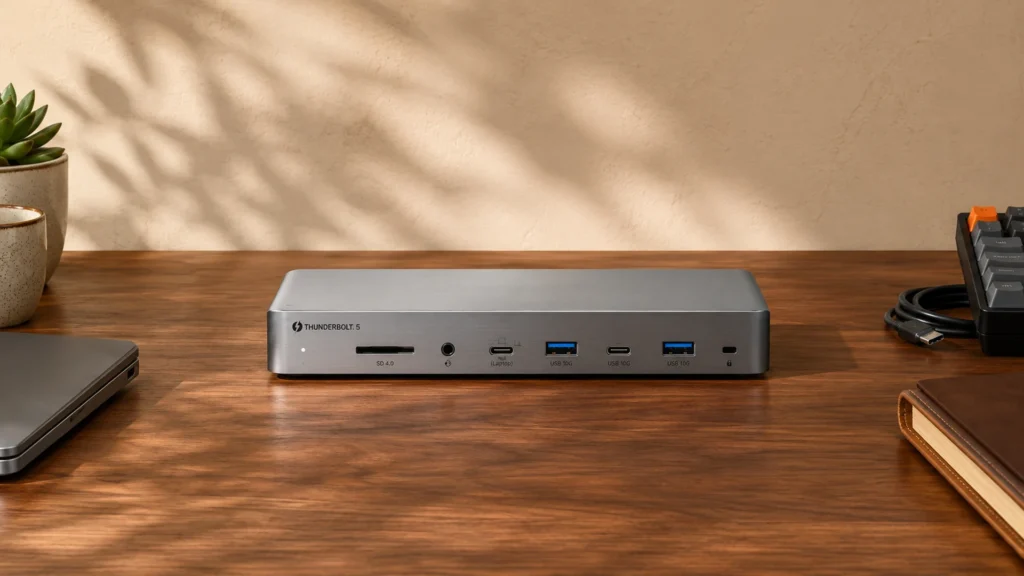
Thunderbolt 5 Docking Stations connect to your laptop through a single Thunderbolt 5 link for video, high-speed data, and charging. In this sub-category, buyers care about display stability first. They also care about whether the dock keeps charging during real work, not just while you idle.
Picking one is hard because Thunderbolt docks pack a lot into a small footprint. You have to balance display output limits against USB port counts. You also need to check power delivery wattage for your specific laptop. A few docks share bandwidth in ways that can cause stutters or slower drive speeds under heavy use.
To narrow it down fast, use the checks below before you buy. Looking for all types? See our Best Docking Stations.
Quick Overview
Our Top Picks
#1. CalDigit TS5 Plus Thunderbolt Docking Station

Specifications
| Brand | CalDigit |
|---|---|
| Host Connection | Thunderbolt 5 |
| Max Displays Supported | 2 Displays |
| Video Output Ports | 1 x DisplayPort 2.1 |
| Max Resolution Supported | 7680 x 4320 @ 60 Hz |
| Power Delivery | 140 W |
| Usb Ports Total | 10 Ports |
| Ethernet Speed | 10 Gbps |
| Memory Card Reader | SD/microSD |
Pros
- Crisp, stable video
- Fast high-watt charging
- Ultra-fast Ethernet
Cons
- Limited display ports
- Cable-sensitive display detection
CalDigit TS5 Plus stands out in Thunderbolt 5 docking stations for its clean, dependable video path plus ultra-fast 10 Gbps Ethernet. In everyday use, that combo means fewer hiccups when you switch apps, wake your laptop, or run demanding monitor setups. Charging also feels steady at up to 140 W, so you can keep a full-size laptop powered while using the dock for storage, peripherals, and networking.
The main trade-off is display flexibility. It supports 2 displays using a single DisplayPort 2.1 connection, so you may need to plan your monitor cabling carefully. It also can be cable-sensitive for display detection, which makes setup less forgiving than docks that tend to work with any combination of cables.
#2. CalDigit TS5 Thunderbolt Docking Station

Specifications
| Brand | CalDigit |
|---|---|
| Host Connection | Thunderbolt 5 |
| Max Displays Supported | 2 Displays |
| Video Output Ports | 1 x DisplayPort 2.1 |
| Max Resolution Supported | 7680 x 4320 @ 60 Hz |
| Power Delivery | 140 W |
| Usb Ports Total | 6 Ports |
| Ethernet Speed | 2.5 Gbps |
| Memory Card Reader | SD/microSD |
Pros
- Crisp, stable video
- Stable PD under load
- Reliable sleep/wake behavior
Cons
- External power inconvenience
CalDigit TS5 stands out among Thunderbolt 5 docking stations for dependable day to day video and data behavior. It supports up to 2 displays, using a single DisplayPort 2.1 output for crisp output at up to 7680 x 4320 @ 60 Hz. In real use, video stays stable and the dock also behaves well with sleep and wake, which matters when you are hopping between meetings and desk work.
The main trade-off is the external power setup. If you want one cable to handle everything with a more compact footprint, this may feel less convenient. It is a strong fit for people who run a two monitor Thunderbolt workflow, want stable charging under load with 140 W power delivery, and need practical extras like 2.5 Gbps Ethernet plus an SD/microSD reader.
#3. Anker Prime TB5 Thunderbolt 5 Docking Station

Specifications
| Brand | Anker |
|---|---|
| Host Connection | Thunderbolt 5 |
| Max Displays Supported | 2 Displays |
| Video Output Ports | 1 x HDMI 2.1, 1 x DisplayPort 2.1 |
| Max Resolution Supported | 7680 x 4320 @ 60 Hz |
| Power Delivery | 140 W |
| Usb Ports Total | 5 Ports |
| Ethernet Speed | 2.5 Gbps |
| Memory Card Reader | SD/microSD |
Pros
- Crisp, stable video
- Thunderbolt performance
- Well-balanced workstation ports
Cons
- Too few USB ports
The Anker Prime TB5 stands out for stable Thunderbolt 5 display and data performance. It targets a clean two-monitor setup with HDMI 2.1 and DisplayPort 2.1, reaching up to 7680 x 4320 @ 60 Hz. In day to day use, that usually means fewer display quirks when you wake the laptop and fewer bandwidth choke points when you move files to fast external storage.
The main trade-off is the dock's lean USB layout, with only 5 USB ports total. It fits best for users who already have a few peripherals on hand, such as a keyboard and mouse on a direct wireless receiver, plus storage and charging through the dock. If you need lots of simultaneous USB connections for work, you may feel short.
#4. WAVLINK Thunderlight Thunderbolt 5 Docking Station

Specifications
| Brand | WAVLINK |
|---|---|
| Host Connection | Thunderbolt 5 |
| Max Displays Supported | 3 Displays |
| Max Resolution Supported | 7680 x 4320 @ 144 Hz |
| Power Delivery | 140 W |
| Usb Ports Total | 4 Ports |
| Ethernet Speed | 2.5 Gbps |
| Memory Card Reader | SD |
Pros
- Crisp, stable video
- Stable PD under load
- Reliable sleep/wake behavior
Cons
- Too few USB ports
- Thunderbolt 5 host
This WAVLINK Thunderlight Thunderbolt 5 dock stands out for work setups that demand dependable video and charging at the same time. In day to day use, it keeps monitor output stable and avoids common wake and drop out issues. With 140 W power delivery, it also handles pass through laptop charging without losing stability while the dock is busy. That mix matters most in the Thunderbolt 5 category, where a single glitch can ruin a multi screen session.
The main trade off is practical USB space and host expectations. It has only 4 USB data ports, so add ons like extra peripherals or frequent storage may require a hub. It also assumes a Thunderbolt 5 host, so you will want to confirm your laptop supports Thunderbolt 5 before buying, especially if you are switching from a USB-C dock.
What to Look For
Stable multi-monitor output: Confirm the dock supports your target number of displays and the refresh rate you want. If you plan on higher refresh panels, check the dock specs for the max resolution and refresh it can sustain while data devices are connected.
Port mix that matches your desk: Make sure the dock includes the video ports you need plus enough USB-A and USB-C for storage, peripherals, and accessories. If you use Ethernet, verify the speed is listed clearly. If you use a camera or transfer cards often, look for an SD or microSD reader where you can plug in without extra adapters.
Power delivery headroom: Check the dock power delivery rating and compare it to your laptop charger needs. For most laptops, more wattage gives you safer pass-through charging when monitors and USB devices are active.
Charging behavior under load: Prefer docks that maintain stable power delivery when you use external storage, multiple monitors, or a busy USB hub setup. If the dock drops to a lower charge mode during use, it becomes annoying fast.
Compatibility with your laptop and OS: Look for solid plug-and-play behavior with sleep and wake, and confirm the dock works cleanly with your operating system. Thunderbolt docks are usually driver-light, but firmware and display detection still matter.
How We Picked
Products were identified through broad research across review sites and buyer forums, then filtered to only those that qualify as Thunderbolt 5 Docking Stations.
Scoring used the same objective pillar framework as the main Docking Stations post, allowing direct comparison of products within this sub-category.
Frequently Asked Questions
Do Thunderbolt 5 docking stations support dual monitors, and what affects that?
Yes, many Thunderbolt 5 docks support two external displays. The exact resolution and refresh rate depend on the dock model and your laptop output. Check the dock spec for max resolution like 4K at a set Hz, and confirm it works for your monitor count.
How much power delivery should I expect from a Thunderbolt 5 dock?
Look for USB-C power delivery around 85 W to 140 W for most laptops. Higher wattage helps if you run monitors and charge at the same time. Also check that the dock supports stable pass-through charging during heavy use.
Will a Thunderbolt 5 dock work across Windows and macOS without headaches?
Most work well with standard USB and video support, but sleep and wake behavior can vary. Firmware updates can improve compatibility over time. If you rely on multiple monitors, plan to test sleep and reconnect after updating.
When should I choose Thunderbolt 5 over other docking stations?
Choose Thunderbolt 5 when you need faster data links, strong multi-display performance, or a cleaner single-cable setup. It also helps when you want consistent external storage performance at high speeds. If you only need basic USB ports and one monitor, cheaper non Thunderbolt options may be enough.
How do Thunderbolt 5 docking stations compare to USB-C docking stations for real work?
Thunderbolt 5 usually delivers more consistent performance for video and fast external devices. USB-C docks can work well, but some models share bandwidth between ports. That can cause slower transfer speeds or display drops when you use many peripherals at once.


