





How to Unclog a 3D Printing Pen Safely
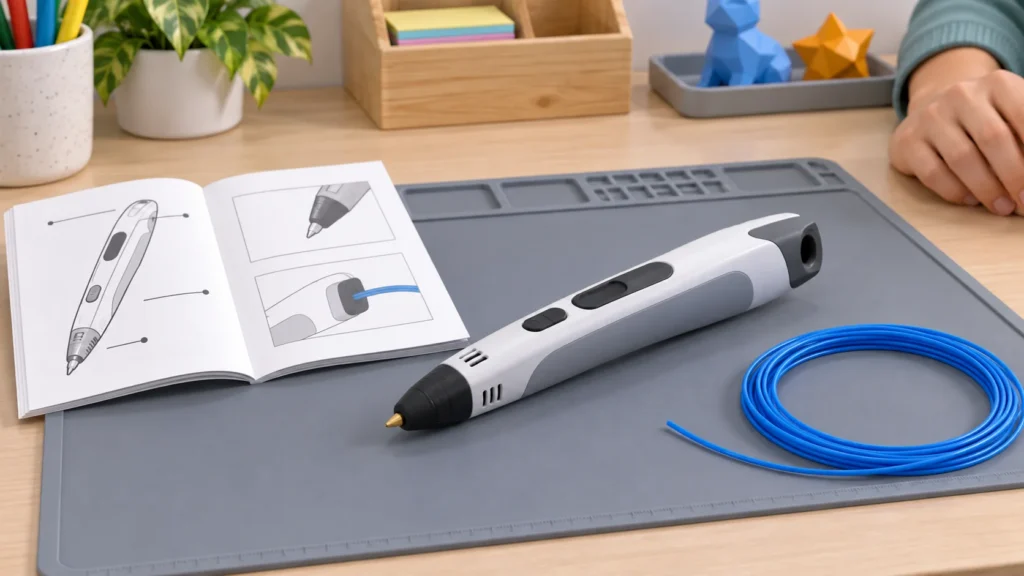
A 3D printing pen that stops extruding may have reached the end of a filament strand, be set to the wrong material temperature, or have a jam. The safest response depends on the pen: loading, reverse and nozzle-removal procedures differ between models. Start with the manual or manufacturer’s troubleshooting page for your exact pen, and do not force filament through a blockage.
This guide walks through a cautious troubleshooting sequence. It is not a substitute for the model’s instructions, especially where they specify whether the pen should be hot or cool during maintenance. For help choosing a pen with features that suit your needs, see TheTopZone’s 3D printing pen picks.
Stop and check the symptoms
If extrusion slows or stops, pause rather than holding the feed button indefinitely. Note whether the motor is still moving, whether the pen shows a warning or temperature indication, and whether filament is visible at the back or tip. These observations can help distinguish a feed problem from a heating or settings issue. A red light or other indicator does not mean the same thing on every model; check its manual instead of guessing.
- Strand may be ending: On the 3Doodler Start+ and Flow, the manufacturer says extrusion can slow near the end of a strand. It advises inserting a new strand and, if needed, giving it a gentle nudge while the pen feeds. Follow this only if it matches your model’s instructions; do not push hard. See the 3Doodler troubleshooting FAQ.
- Filament will not feed: Check that it is the correct type and size for your pen, and that the pen is ready at the setting specified for that material. Compatibility is model-specific: for example, the 3Doodler Flow uses 1.75 mm filament, while the PRO uses specified 2.85 mm strands. These examples do not establish compatibility for other pens. See the manufacturer’s FAQ and the manual for your own model.
- Motor stops or an alert appears: Stop feeding and consult the model’s troubleshooting instructions. The 3Doodler PRO FAQ says its motor can stop and its LED turn red if the selected material is used at too low a temperature or too high a speed. That explanation applies to the PRO, not automatically to other pens.
Make the pen safe before maintenance
The nozzle and recently extruded plastic can be hot. Keep the tip away from skin and flammable materials, place the pen securely, and do not touch the nozzle to test its temperature. If you are unsure what to do next, stop using the pen and consult its instructions or the manufacturer’s support team.
Do not assume that every pen should be switched off and cooled before every clearing step. Some maintenance procedures are model-specific: the 3Doodler PRO instructions say to remove its nozzle only when the device is on and fully heated, and describe using its nozzle-removal tool. That is not permission to remove a nozzle on another model, or to handle a hot nozzle without the specified tool and procedure. For the PRO, follow the manufacturer’s PRO nozzle and unclogging guidance exactly. For any other model, use its own manual; if it does not describe user nozzle removal, do not improvise.
Before opening a panel or handling internal parts, check whether the manufacturer permits that maintenance and what power state it requires. Do not insert improvised tools into the nozzle or feed path, dismantle the pen, or pull stuck filament with force. If the correct procedure is unclear, contact the maker rather than risk damaging the mechanism.
Work through the filament path
- Confirm the material and setting. Check the pen’s compatibility information and select the setting for the filament in use. The 3Doodler Flow FAQ, for example, says its selected temperature should correspond to the material; the PRO has material-specific presets. Do not copy a setting from another pen or assume that filament with a similar name is interchangeable.
- Check the strand you can see. Look for an end that may have reached the feed mechanism, or a strand that is visibly bent or damaged. Prepare a strand only as your manual directs. For its own 3D Printing Pen Pro, 3D&Print instructs users to cut the filament straight before inserting it; that instruction does not automatically apply to other models. See the 3D&Print Pro product instructions. The 3Doodler FAQ says its Start+ and Flow can sometimes need a gentle nudge when a new strand is loaded. Do not push against resistance.
- Use the model’s unload or reverse function if instructed. Some pens provide a way to retract filament; the correct button and sequence vary. The 3Doodler PRO FAQ specifically directs users with a clog to use its reverse function with its Unblocking Tool after heating the pen to the appropriate material temperature, and describes additional access through its magnetic maintenance panel. Treat those steps as PRO-specific—not a general procedure for all pens.
- Stop if the blockage remains. If the strand will not move using the manufacturer’s steps, do not increase force, twist the pen apart, or probe the nozzle. Contact the manufacturer or an authorized service provider, and give them the model, filament type, selected setting and what you already tried.
Keep hands clear of the tip throughout any approved clearing process. If your pen’s manual gives a different sequence, follow that sequence. A manufacturer’s advice for one model is not evidence that another model has the same removable parts or clearing tool.
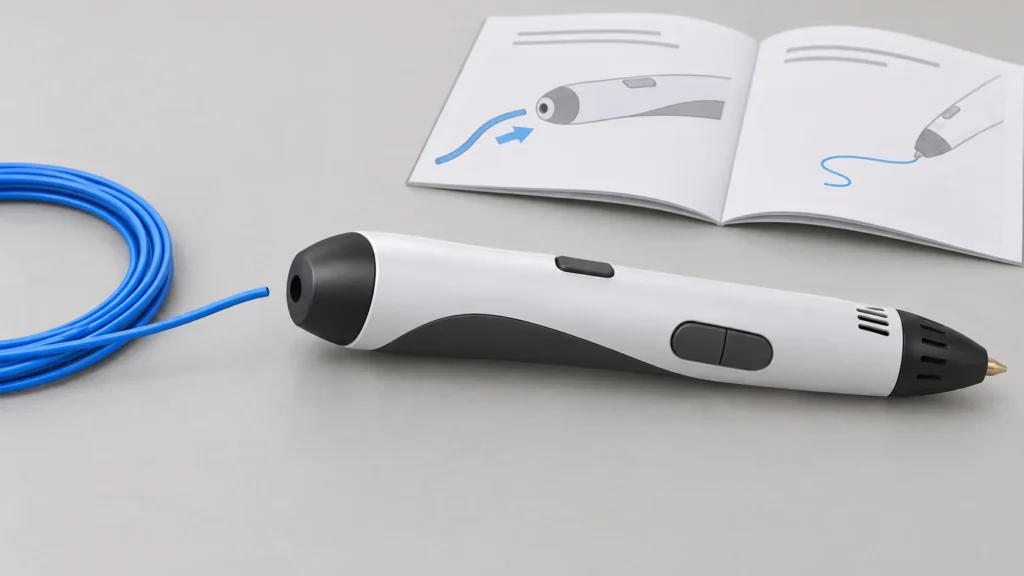
Illustrative example: a Flow that stops feeding
Suppose a 3Doodler Flow slows near the end of a strand, then does not extrude after a new strand is inserted. First, check that the material is compatible 1.75 mm filament and that the pen has selected the appropriate material setting. The Flow FAQ says to try a small nudge on a new strand if extrusion remains slow; use only gentle pressure. If that does not work, follow the Flow-specific jam-clearing video or instructions linked from the manufacturer’s FAQ. Do not apply the PRO’s nozzle-removal or Unblocking Tool procedure to the Flow unless the Flow instructions explicitly authorize it. If the documented steps fail, contact 3Doodler support rather than forcing the strand.
This example uses one specific model to show why the manual matters. If you have another pen, use its compatibility chart and maintenance procedure instead; filament diameter, heating controls and allowed access to the feed path can differ.
Habits that help prevent repeat jams
- Use compatible filament. Match the material and strand size to the exact pen. The 3Doodler FAQ distinguishes, for example, the Start+’s dedicated Eco-Plastic from the Flow’s 1.75 mm filament and the PRO’s specified materials and strand size. Check the maker’s compatibility list before trying a third-party refill.
- Match the material setting. Select the documented temperature or material profile before feeding. On models with adjustable speed, follow the maker’s advice if feeding problems persist; the 3Doodler PRO FAQ suggests checking the material-temperature pairing and adjusting speed if the correct pairing does not resolve feeding.
- Store filament appropriately. 3Doodler recommends keeping its filament in a cool, dry, dark place. Keep filament for other brands according to their own instructions; do not assume all materials have identical storage requirements.
- Follow loading and unloading directions. Use the pen’s specified feed, reverse or removal process when changing strands or colours. Do not yank filament out from the back unless the manual instructs you to do so.
- Stop when the pen signals a problem. If an alert, motor stop or persistent failure to heat occurs, use the model’s troubleshooting guide. Repeatedly trying to extrude through resistance can turn a small feed issue into damage.
When to contact support
Seek manufacturer help if a model-approved clearing attempt does not restore feeding, if the pen repeatedly stops, or if the instructions do not explain how to clear the blockage. Include the exact model and filament, the indicator or display behavior, and the steps already taken. Avoid opening sealed parts or using unapproved tools while you wait for guidance. A safe endpoint is a working pen—or a support request—not a forced filament strand.