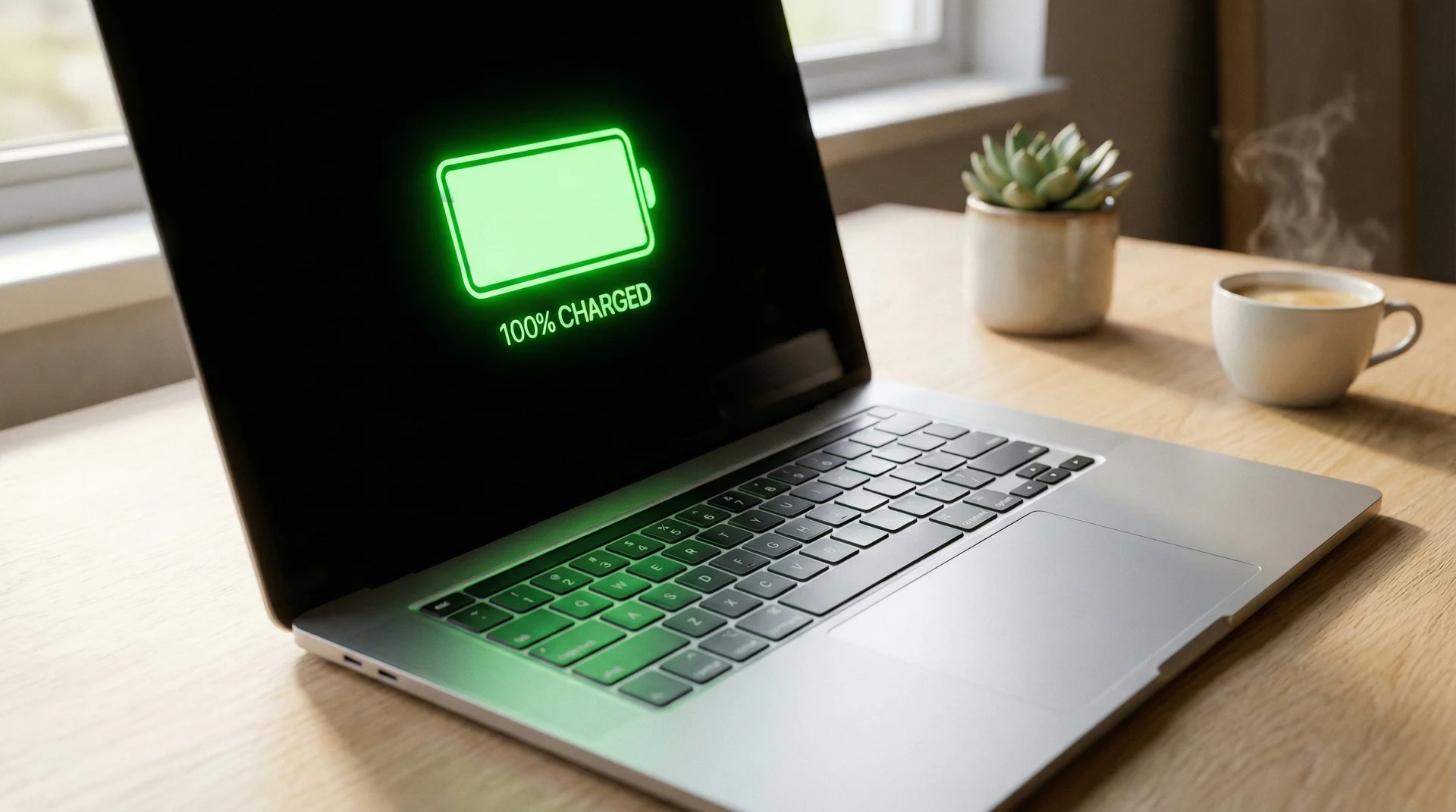
We have all been there. You are in the middle of a crucial project, or perhaps settling in for a long flight with your favorite movie, and that dreaded ‘low battery’ notification pops up. It is a moment of pure frustration. While modern technology has come a long way, the lithium-ion batteries powering our portable lives are still subject to the laws of chemistry and physics. They degrade over time, but the speed at which they do so is largely within your control.
Extending your laptop battery life is not just about getting an extra thirty minutes of work done today; it is about preserving the overall health of the hardware so you do not have to replace the unit prematurely. Whether you are using a high-end workstation or one of the best laptops for students, these strategies will help you squeeze every possible drop of energy out of your device.
Understanding the Science of Battery Aging
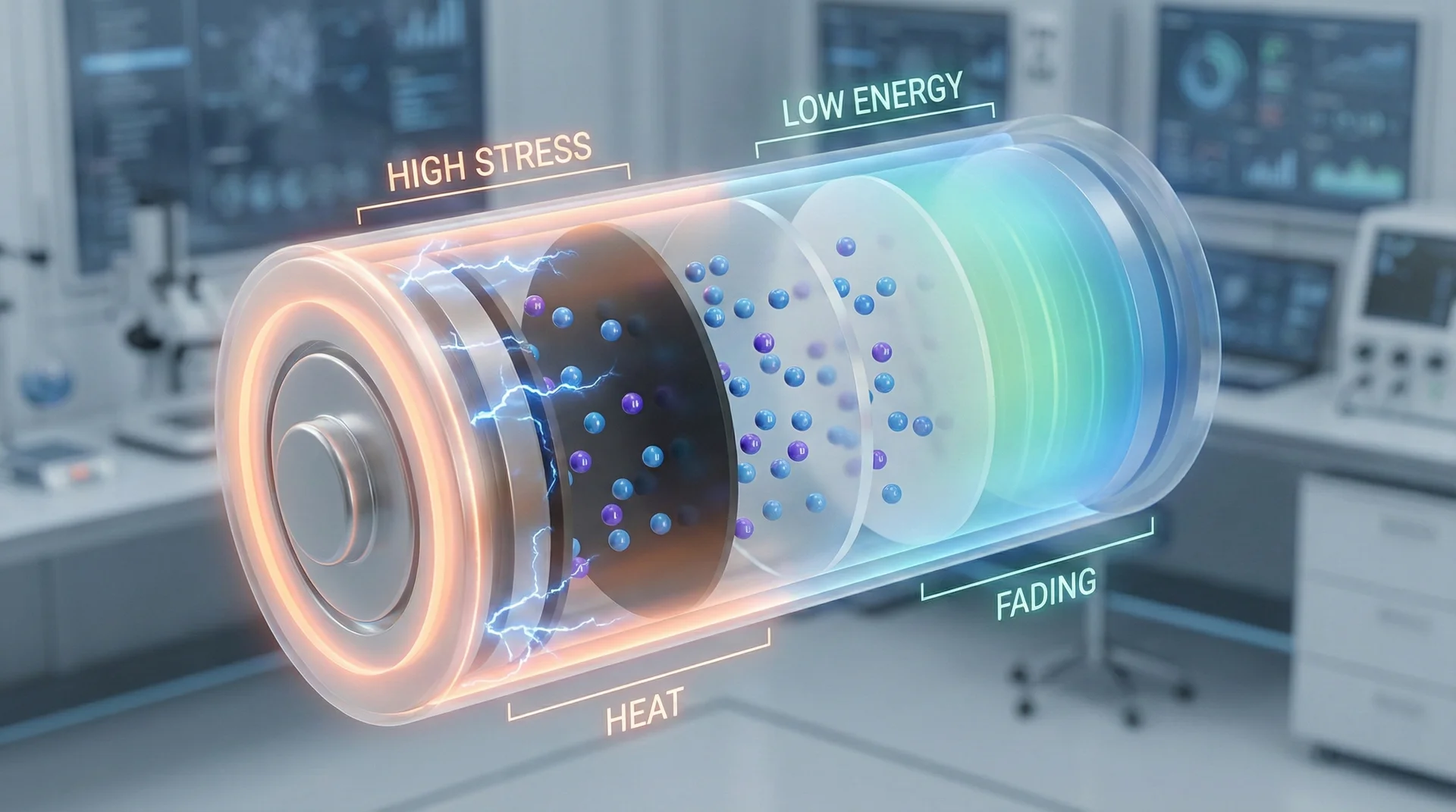
Before we dive into the settings and habits, it is helpful to understand what is actually happening inside that sleek casing. Most modern laptops use Lithium-ion (Li-ion) or Lithium-polymer (Li-po) batteries. These are preferred because they are lightweight and hold a significant charge. However, they are also sensitive souls. Every time you charge and discharge your battery, it undergoes a ‘cycle.’ Most laptop batteries are rated for about 300 to 500 full cycles before their capacity begins to noticeably drop.
Aging occurs through several factors: heat, high voltage, and chemical depletion. When a battery stays at 100% for weeks while plugged into a wall, it remains at a high voltage state, which puts stress on the internal components. Conversely, letting it drop to 0% can occasionally cause the battery to fall into a deep discharge state, making it difficult or impossible to recharge. Understanding this balance is the first step toward longevity.
Optimizing Display and Graphics Settings
The single biggest consumer of power in any laptop is the display. Driving all those pixels—especially on high-resolution 4K screens—requires a massive amount of energy. The first and easiest step to extending your runtime is to lower your brightness. You do not need the screen at 100% unless you are working in direct sunlight. Even dropping it to 70% or 80% can add significant time to your day.
Furthermore, if your laptop has an OLED screen, using ‘Dark Mode’ across your operating system and apps can save a surprising amount of power. Unlike traditional LCDs, OLED panels turn off pixels entirely to show black, meaning they consume zero power for those areas. Another hidden power drain is the refresh rate. If your laptop supports 120Hz or 144Hz, consider dropping it to 60Hz when you are on battery power. The difference in smoothness is noticeable, but the battery savings are substantial.
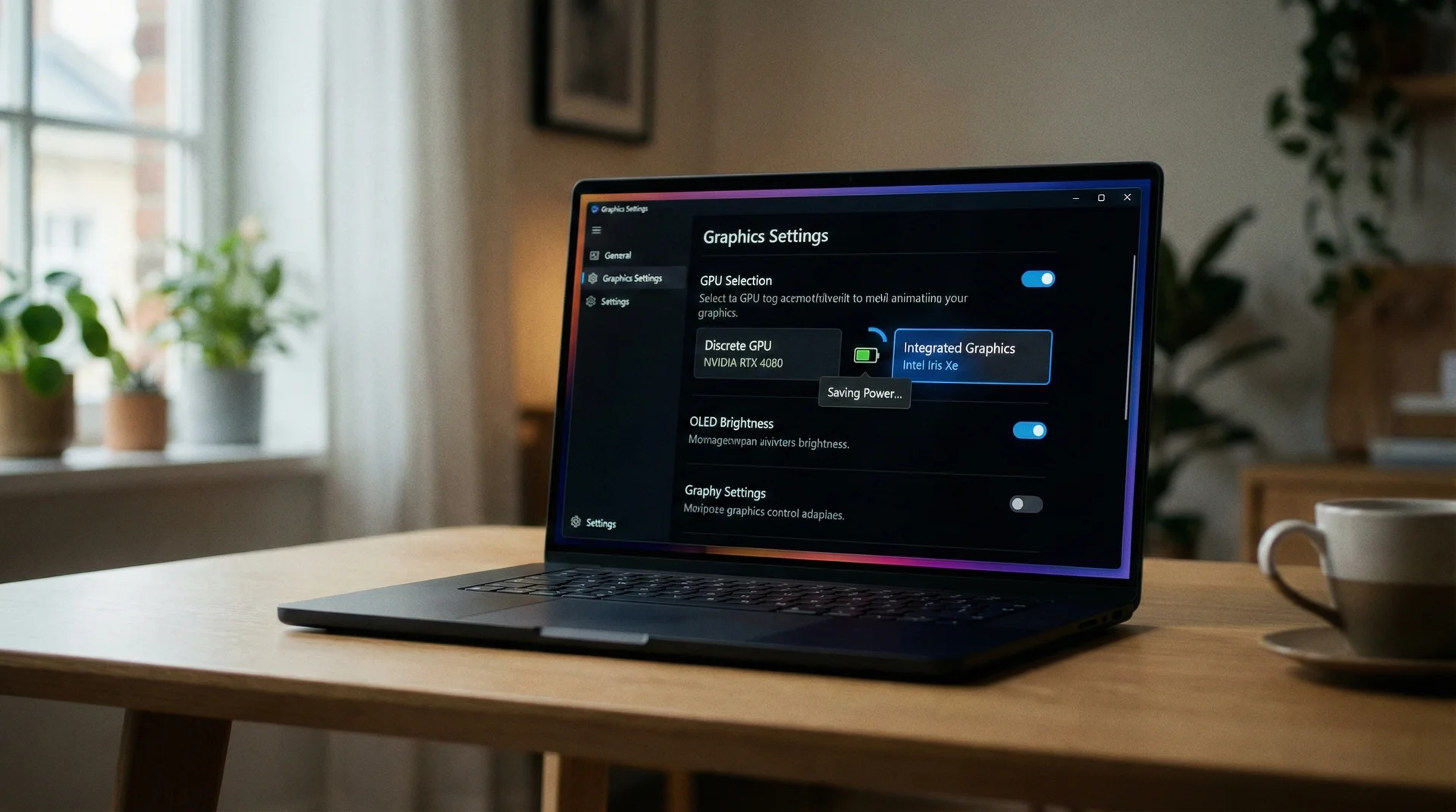
If you own one of the best laptops designed for gaming or creative work, you likely have a dedicated graphics card (GPU). While powerful, these chips are power-hungry. Ensure your laptop is set to use ‘Integrated Graphics’ for basic tasks like web browsing or word processing, saving the ‘Discrete GPU’ only for when you actually need it.
Mastering Your Operating System Power Modes
Both Windows and macOS have built-in tools designed to manage energy consumption. In Windows 11, the ‘Power Mode’ slider is your best friend. When you are away from an outlet, move that slider to ‘Best Power Efficiency.’ This tells the CPU to throttle down its speed when not needed and aggressively suspends background tasks.
On a Mac, the ‘Low Power Mode’ (found in System Settings > Battery) performs a similar function. It reduces energy usage to increase battery life and operate more quietly. It is also worth checking your ‘Sleep’ and ‘Hibernate’ settings. While ‘Sleep’ keeps your RAM powered so the laptop wakes up instantly, it still drains a small percentage of battery. If you know you will be away from your laptop for more than an hour, ‘Hibernate’ (on Windows) or simply shutting down is the better choice for preservation.
The 80% Rule and Smart Charging Habits
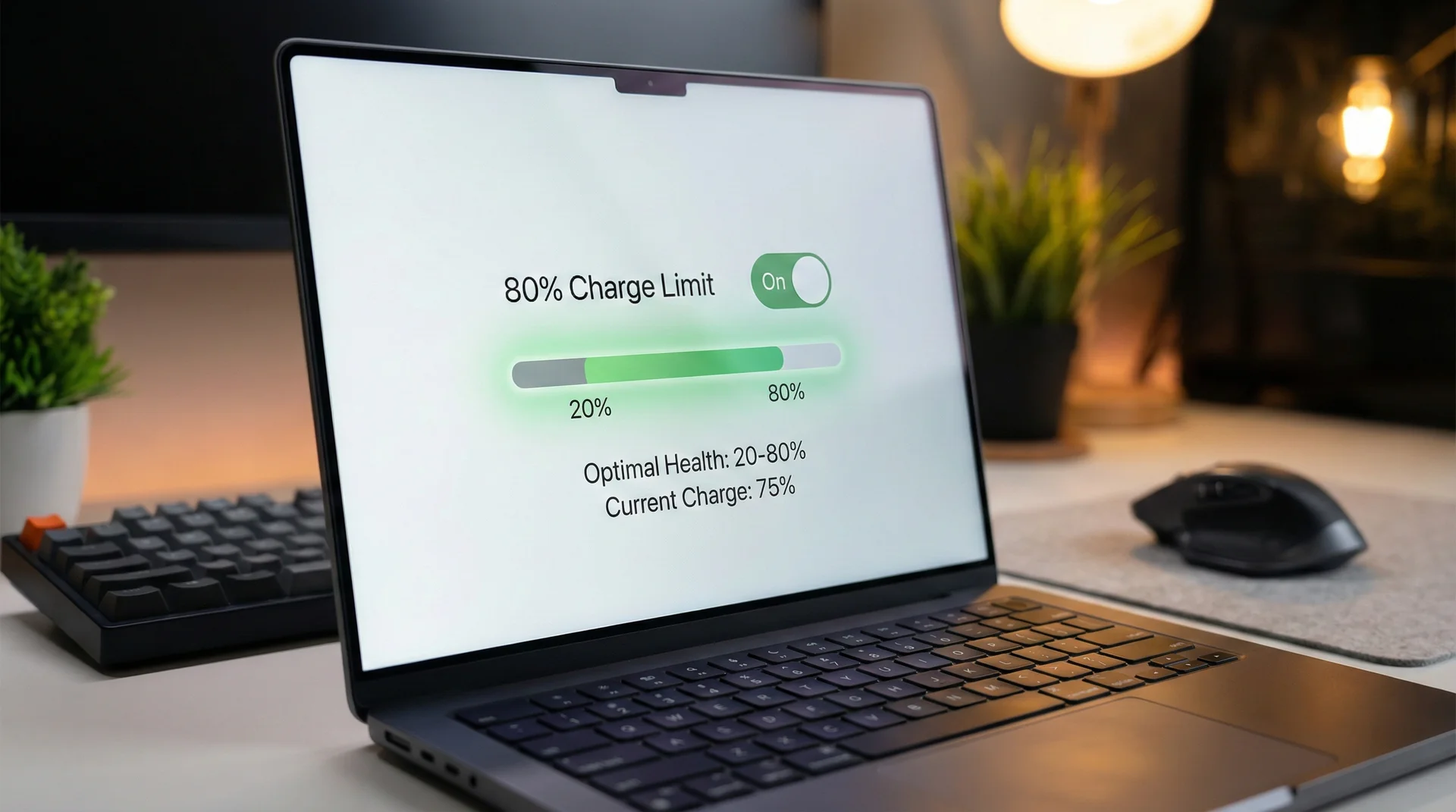
One of the most common myths is that you should always charge your laptop to 100%. In reality, lithium-ion batteries are happiest when kept between 20% and 80%. This is often called the ‘sweet spot.’ Keeping a battery fully topped off at 100% while plugged in creates heat and high-voltage stress, which degrades the battery’s chemical health over time.
Many manufacturers now include ‘Battery Health’ software that allows you to limit the maximum charge to 80%. If you use your laptop as a desktop replacement—meaning it stays on your desk and plugged in most of the time—this setting is mandatory. It prevents the battery from sitting at peak voltage and can effectively double the lifespan of the hardware. Likewise, try to avoid letting your battery dip below 20%. Frequent ‘deep discharges’ are taxing on the cells and will lead to a faster decline in total capacity.
Managing Background Software and Connectivity
Sometimes the battery drain isn’t caused by what you are doing, but by what the laptop is doing behind your back. Background applications are notorious for sipping power. Open your Task Manager (Windows) or Activity Monitor (macOS) and look at the ‘Impact’ or ‘Energy’ tab. You might find that a messaging app or a cloud storage sync tool is using a significant amount of CPU power even when you aren’t actively using it.
Your browser choice also matters. While Chrome is incredibly popular, it is famously resource-heavy. Browsers like Microsoft Edge (on Windows) or Safari (on Mac) are often better optimized for the specific hardware they run on. Additionally, manage your tabs. Every open tab is a small drain on your RAM and CPU. Using extensions that ‘suspend’ inactive tabs can be a game-changer for those who find themselves with 50 tabs open at once.
Finally, don’t forget about connectivity. Wi-Fi and Bluetooth radios consume power by constantly scanning for signals. If you are working offline on a document or watching a downloaded video, turning on Airplane Mode can provide a noticeable boost. Similarly, if you aren’t using wireless headphones or a mouse, toggle Bluetooth off.
The Impact of Temperature and Physical Care
Heat is the ultimate enemy of battery longevity. A laptop that runs hot will see its battery capacity dwindle much faster than one that stays cool. Ensure that your laptop’s vents are not blocked. Working on a bed or a plush sofa might feel comfortable, but those surfaces act like insulation, trapping heat and forcing the fans to work harder.
Use your laptop on a hard, flat surface to allow for proper airflow. If you find your device is constantly running hot, it might be time to clean the vents with a bit of compressed air. Dust buildup can choke the cooling system, leading to thermal throttling and increased power consumption. Furthermore, never leave your laptop in a hot car. Even a few hours in high temperatures can cause permanent, irreversible damage to the battery’s chemical structure.
Hardware Maintenance and Peripheral Management
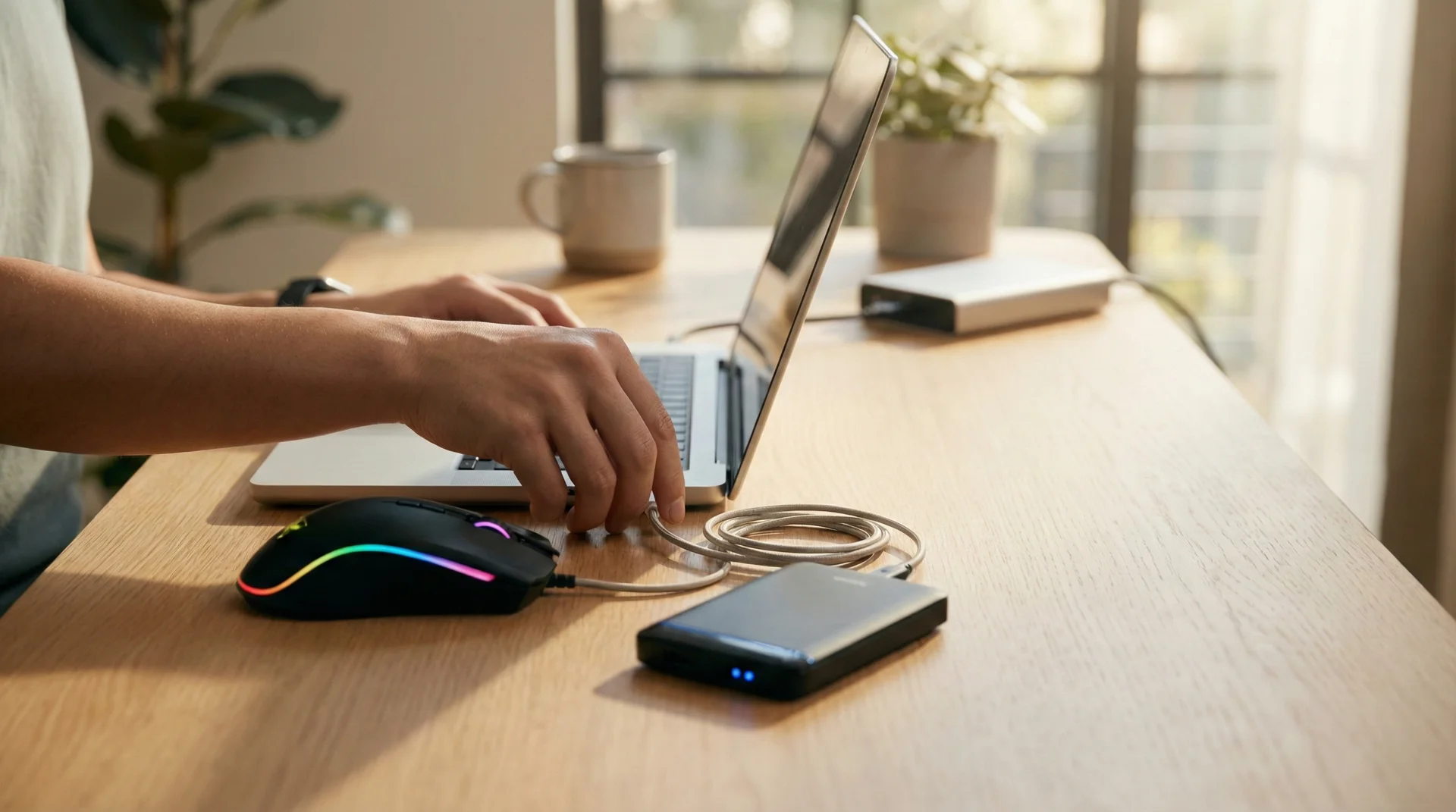
Every device you plug into your laptop is drawing power from the battery. USB flash drives, external hard drives, RGB mice, and even webcams add up. If you are trying to maximize your time away from a charger, unplug everything you don’t strictly need. External hard drives are particularly draining because they contain spinning platters or high-speed flash controllers that require constant power.
If you are using an older device and find the battery life is abysmal, it might be worth checking your internal hardware. Old-fashioned Hard Disk Drives (HDDs) use significantly more power than modern Solid State Drives (SSDs). Upgrading to an SSD not only makes your computer feel brand new but also improves energy efficiency. For those considering a complete upgrade, checking out the current best laptops will show you just how far power efficiency has come, with some modern chips offering nearly 20 hours of use on a single charge.
When to Replace Your Laptop Battery
Despite your best efforts, all batteries eventually reach the end of their life. How do you know when it’s time? Windows users can generate a ‘Battery Report’ by typing `powercfg /batteryreport` into the Command Prompt. This report shows you the ‘Design Capacity’ versus the ‘Full Charge Capacity.’ If your full charge capacity is less than 70% of the design capacity, you will start to notice a significant decline in usability.
On a Mac, you can go to System Settings > Battery > Battery Health to see a simple ‘Normal’ or ‘Service Recommended’ status. If your battery is swelling—pushing up the trackpad or making the bottom of the case bulge—stop using it immediately. A swollen battery is a fire hazard and needs to be replaced by a professional right away. Most modern laptops have internal batteries, but they are still replaceable with the right tools or through an authorized service provider.
Final Thoughts on Battery Longevity
Extending the life of your laptop battery is a marathon, not a sprint. It is about the small, daily choices: lowering the brightness just a bit, closing unnecessary tabs, and not leaving the charger plugged in overnight every single day. By implementing the 80% rule and keeping your device cool, you can significantly delay the inevitable degradation of the lithium-ion cells.
Technology is a tool meant to serve you, and a little bit of maintenance goes a long way in ensuring that tool remains reliable for years to come. Take care of your hardware, and it will take care of you when you’re miles away from the nearest power outlet.