





How to Connect a Digital Piano to a Phone, Tablet, or Computer
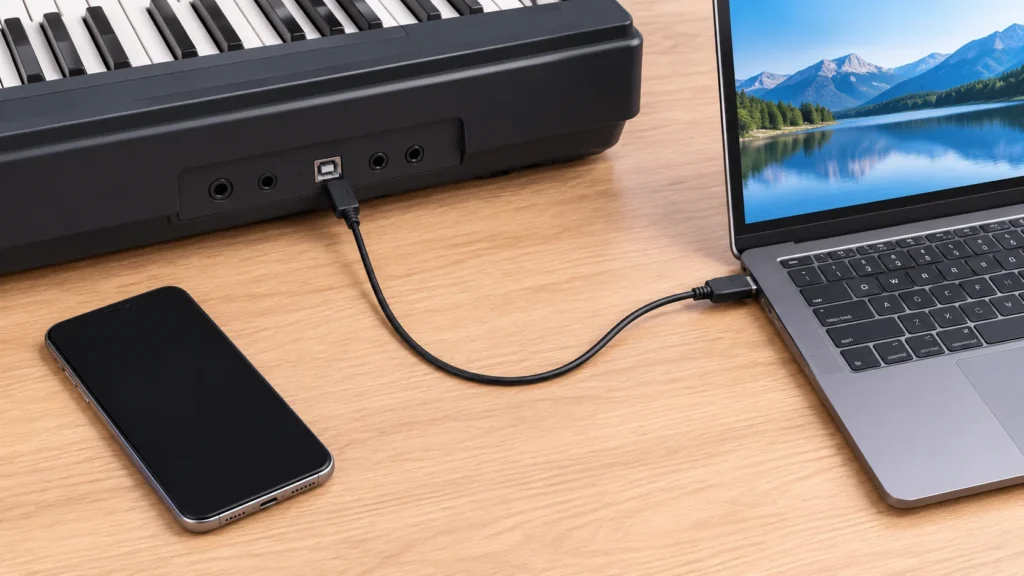
Before plugging anything in, decide what you want the other device to do. Do you want to hear the piano through a phone or computer, record the notes you play, use a music app, or play audio from the device through the piano? These are different jobs, and a connection that carries one kind of information may not carry another.
Start with the piano’s manual or official specifications for its exact model and region. Identify the ports and wireless functions listed there, then check the receiving device’s requirements. A port’s shape alone does not confirm what it can do. For broader piano-selection context, see TheTopZone’s digital piano Top Picks; this guide focuses on setting up and troubleshooting a connection.
Choose what you need to send
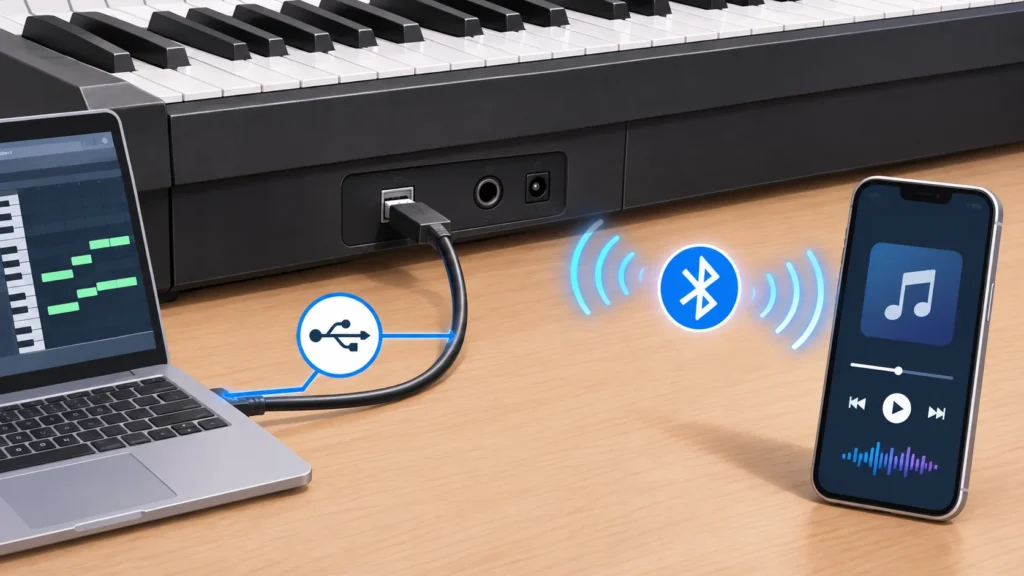
Audio is the sound itself. A piano with Bluetooth audio may play sound from a phone through its speakers, send piano sound to another device, or support a particular audio arrangement described in its manual. Do not assume that Bluetooth audio works in both directions or that it is available on every piano. Check the model documentation for the direction and use it supports.
MIDI is performance information, such as which notes are played and when. It is useful when an app or computer is to receive playing data, but it is not the piano’s recorded sound. To hear a MIDI performance, the receiving app or instrument needs to generate audio. Bluetooth MIDI and Bluetooth audio are distinct functions: a piano may have one, both, or neither.
USB can carry MIDI, audio, or both, depending on the instrument and how its ports are specified. For example, Yamaha lists a USB TO HOST connection and a USB audio interface on the P-145BT specifications page. That example is specific to the listed model; check your own piano’s documentation before expecting USB audio or MIDI.
Illustrative example: Suppose you want to record the piano’s actual sound on a computer. A MIDI-only connection would not, by itself, record that sound; look for a model-specific USB audio function or an audio-output route supported by the piano and computer. If you only want a music app to register the notes you play, MIDI may be the relevant route instead. The right choice depends on the goal, not simply on whether a cable or Bluetooth pairing is possible.
Check compatibility before connecting
Write down the piano’s exact model name and find its manual or specifications. Look for the intended connection type and any stated computer or mobile-device requirements. Then check whether the phone, tablet, or computer supports that connection and whether the needed app recognizes it. For Bluetooth, confirm separately that the piano supports the required Bluetooth function: pairing for MIDI does not establish audio support, or the other way around.
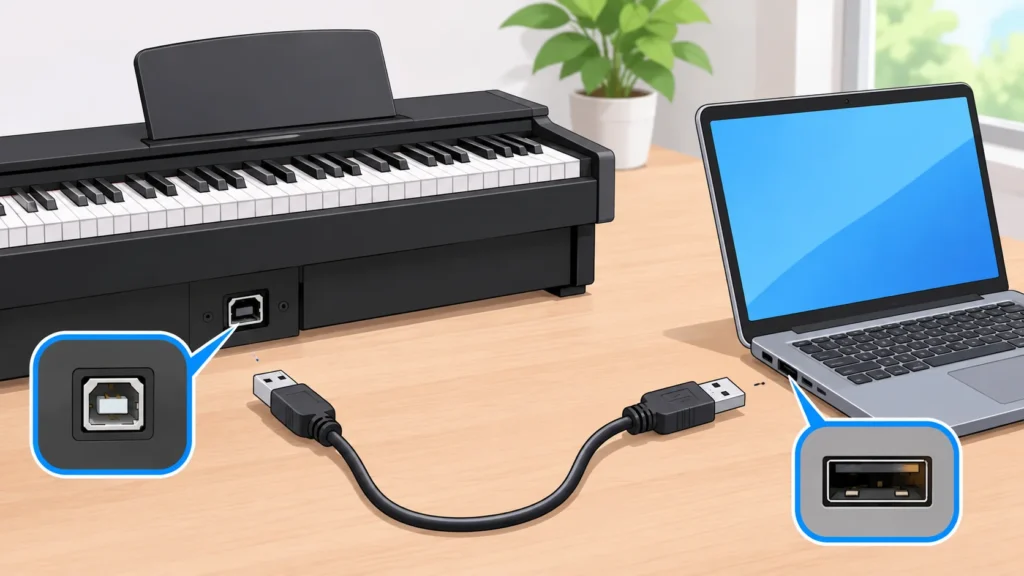
For USB, identify the piano port by its printed name or manual description, then confirm what cable or adapter connects that port to your device. The piano port’s “host” role and the receiving device’s port or adapter need to be appropriate for the setup. Do not choose a cable solely because both ends fit. A retailer’s listing for the Kawai CA-401 reports Bluetooth audio and MIDI as separate features; treat that as information about that model listing, not a guarantee for other Kawai pianos or a substitute for the exact model manual.
Also check whether the intended app supports the connection and function you want. A device can pair with a piano without the app receiving MIDI, and a computer can see a USB connection without the software being set up to record it. If you cannot find clear compatibility information, consult the piano maker’s support documentation rather than buying adapters on guesswork.
Set up one connection at a time
- Choose one goal. Decide whether you are testing audio playback, MIDI input, MIDI output, or USB audio. Avoid changing multiple connection types at once.
- Prepare the piano and device. Turn on the piano as instructed in its manual. Open the app or computer software you intend to use and check its device or input settings.
- Connect using the documented route. For Bluetooth, follow the piano’s pairing steps and select it in the relevant app or device settings. For USB, connect the specified piano port to the compatible device using the appropriate cable or adapter.
- Test the intended result. Play a few notes. For MIDI, check whether the app registers notes; for audio, check whether sound comes from the intended output. A successful connection indicator is not proof that every function is working.
- Change one thing if it fails. Check app input or output selection, the piano’s documented settings, and the device’s sound or MIDI settings. Then retest before trying another cable or connection type.
Troubleshoot the piano, cable, and device
When a setup fails, isolate the three likely parts: the piano, the connection, and the receiving device. Confirm that the piano’s manual supports the function being tested. Recheck that you used the named port and the correct pairing or setup procedure. If you have access to a known-compatible cable or device, test one replacement at a time; this helps identify whether the fault follows a particular part.
- Bluetooth device does not appear: Check the piano’s documented pairing steps and whether it is in the mode for the function you need. Remove an old pairing only if the manual or device instructions indicate that step.
- Bluetooth is connected but the app receives no notes: Confirm that both the piano and app support MIDI over Bluetooth and that the app has selected the piano as its MIDI input. Audio pairing alone may not supply MIDI.
- Notes register, but there is no piano sound: Check whether you expected MIDI or audio. MIDI data does not itself guarantee audible piano sound; check the app’s sound source and output selection.
- USB device is not recognized: Verify the port, cable, adapter, and compatibility requirements in the piano and device documentation. If possible, try one known-compatible cable or receiving device, changing only one part at a time.
- Sound comes from the wrong place or is absent: Check the app’s audio output, device volume, and the piano’s relevant settings. If recording, confirm whether the chosen route carries audio rather than MIDI alone.
If the setup still fails after these checks, record the piano model, device and operating system, app, connection type, and exact symptom. That information can help the piano maker or app provider identify whether the limitation is compatibility, configuration, or a connection fault. Do not assume that a general brand feature applies to every model; the exact manual is the best guide to what that particular instrument supports.