





Why Wireless Charging Is Slow and How to Fix It
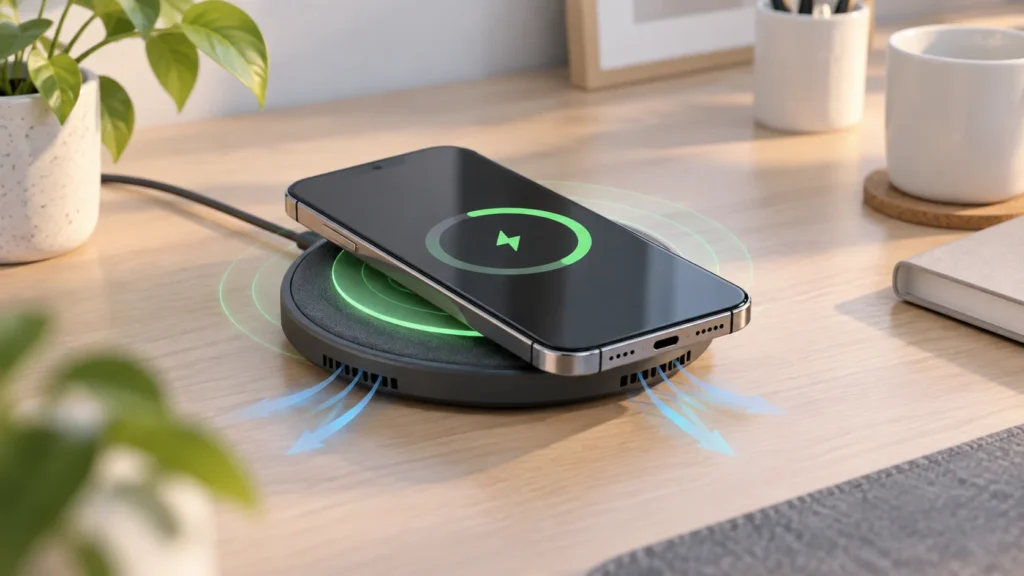
Wireless charging is convenient, but it is not automatically as fast as wired charging. A phone may charge slowly because its charging coil is misaligned, its case interferes with the connection, the charger lacks the required power source, or the phone reduces charging to manage heat. The first step is to confirm that the phone supports wireless charging at all; support varies by model, even within the same product family.
There is also no reliable universal answer to “How long will wireless charging take?” Charging time depends on the phone, battery level, charger and adapter, temperature, software settings, case and whether the phone is being used. Treat a charger’s wattage as a compatibility or maximum-rating detail, not as a guaranteed charging speed.
Check the basics first
Start with the exact phone model’s manual or support page. For an iPhone, check Apple’s technical specifications for that exact model and the accessory’s compatibility list. Do not assume that every model in a recent iPhone family supports wireless charging, or that every compatible charger supports the same speed. Apple’s wireless-charging guidance is therefore more useful for an iPhone than a general statement that every phone supports Qi.
Samsung likewise publishes model-specific compatibility information. Its support page lists compatible Galaxy families and warns that some Galaxy A-series, XCover and Tab devices are not compatible with wireless charging. Check Samsung’s exact device guidance before buying a pad or diagnosing a fault.
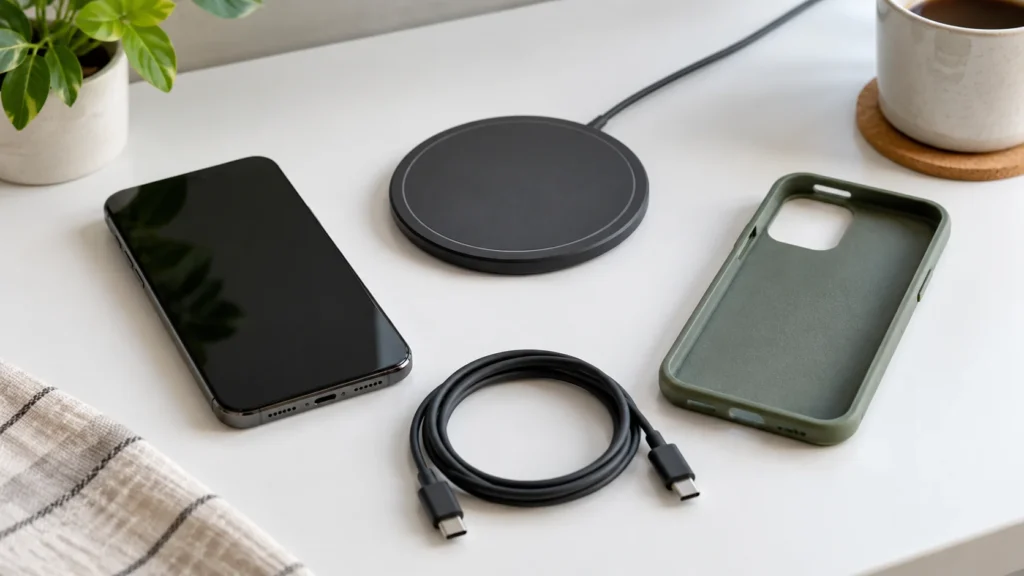
- Confirm the phone supports wireless charging. Do not infer compatibility from the presence of a glass back, a premium model name or a compatible-looking case.
- Check the charger standard and phone requirements. Qi, Qi2 and manufacturer-specific fast-charging features are not interchangeable in every combination.
- Inspect the power adapter and cable. A pad connected to an unsuitable or underpowered adapter may not deliver its advertised mode.
Why wireless charging slows down
Misalignment and movement
Wireless charging transfers energy between coils. If the phone’s coil is not over the charger’s effective charging area, charging may become slower, intermittent or stop. Apple recommends placing an iPhone in the centre of the charger or in the position specified by the accessory maker. Apple’s placement instructions also note that vibration from notifications can move a phone off position.
Samsung similarly advises placing the phone in the centre, while warning that coil locations vary and that sloped pads or vehicle chargers can make alignment harder. Its troubleshooting guidance explains that improper alignment may cause slow charging, interruptions or overheating. See Samsung’s alignment and obstruction checks.
Cases, magnets and objects
Thick, metal or battery cases can interfere with charging. Cards, metal plates, RFID items and other conductive objects should not sit between the phone and pad. Apple recommends removing a thick, metal or battery case when an iPhone charges slowly. Its support article also explains the risk of placing sensitive cards or magnetic items between the phone and charger.
Magnetic accessories need particular care. Samsung says a magnetic cover or plate can misalign the coils, and a charger that is not compatible with the relevant Magnetic Power Profile may interpret the accessory as a foreign object. Samsung’s guidance for magnetic covers recommends checking alignment and using compatible certified accessories.
Heat and phone use
Wireless charging can make a phone warmer. When temperature rises, software may reduce charging speed or temporarily limit charging. Apple says an iPhone may limit charging above 80 per cent when it becomes too warm, then resume as it cools. Apple recommends moving the phone and charger to a cooler location.
Remove unnecessary case layers, keep the pad out of direct heat and avoid demanding activities while charging. These steps may help, but they cannot override a phone’s built-in thermal controls.
Power source and settings
A wireless pad is only one part of the charging system. The wall adapter, cable, pad and phone must all support the intended mode. Samsung instructs users to use the adapter and cable supplied with the wireless charger or those recommended by its manufacturer. Samsung also says fast wireless charging depends on certification and compatible devices.
On supported Galaxy devices, fast wireless charging may also be disabled in settings. Samsung’s instructions place the relevant controls under Settings, Battery and Charging settings, although menu names can vary by model and software version. Check Samsung’s current settings guidance for the device in question.
A practical troubleshooting decision
- No charging icon appears:confirm compatibility, reconnect the adapter and cable, then remove the case and any objects between the phone and pad.
- Charging starts but is slow:centre the phone carefully, check for heat and verify that the adapter supports the charger’s required input.
- Charging stops when the phone moves:use a level surface, reposition the phone or choose a charger designed for stable magnetic alignment when the phone and accessory support it.
- Only fast charging is missing:check the phone’s charging settings, charger certification and exact model requirements. Do not assume a higher-wattage pad will force a higher rate.
- The problem continues:update the phone if the manufacturer recommends it, test with approved accessories and contact the manufacturer or service provider if wireless charging still fails.
Example: a charger that slows down at your desk
Imagine a phone that starts charging normally but gains little charge during a video call. This is an illustrative troubleshooting example, not a test result. The phone is doing work while it charges, and heat may also limit charging. The charging icon alone does not tell you the net amount of energy reaching the battery.
First, record the starting battery percentage and leave the phone idle for a fixed period on the same charger. Keep the case, adapter and room conditions the same. Compare that with your usual experience during a call. If the idle phone gains charge more consistently, reducing activity while charging may be more useful than immediately buying a higher-wattage pad.
If it is still slow when idle, change one thing at a time: remove an interfering case, check alignment, then verify the recommended adapter and cable. Stop using damaged or unusually hot accessories and follow the manufacturer’s instructions. This sequence helps distinguish an accessory problem from normal limits without promising a charging time.
For a short lunch break, base your expectations on the exact setup you actually use. A large wattage printed on a pad is a maximum capability, not a constant charging rate. You cannot reliably convert it into minutes to a full battery without knowing the power that reaches the battery throughout the session.
How to choose a wireless charger
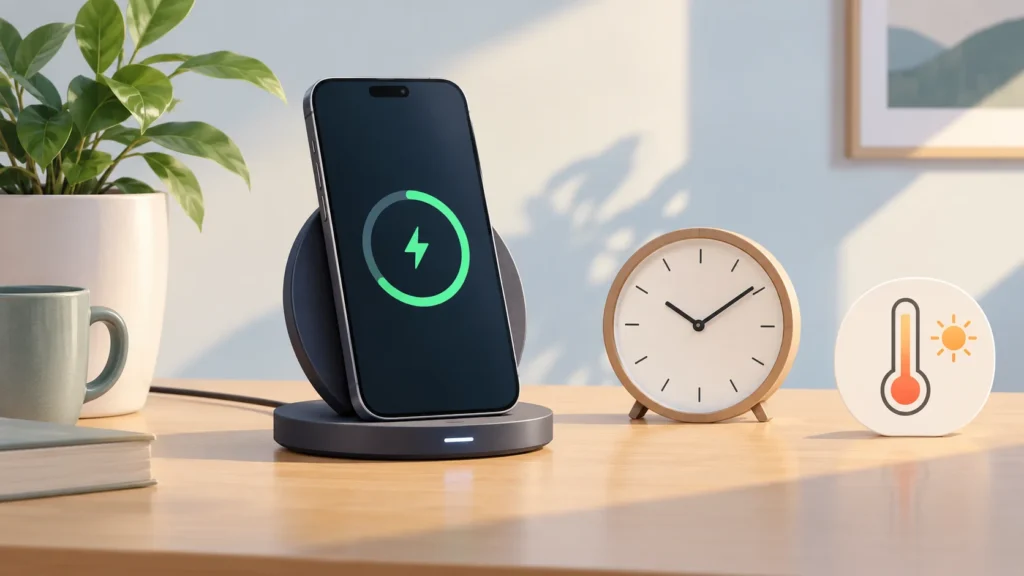
Choose compatibility before maximum wattage. Look for the exact phone model in the charger manufacturer’s compatibility list or manual, and confirm whether the desired fast mode requires Qi2, a magnetic profile, a particular adapter or a manufacturer-certified accessory. A flat pad may be suitable for overnight charging, while a stand can make alignment easier during desk use; neither design guarantees a faster result.
For model-specific buying options, browse TheTopZone’s wireless-charger Top Picks, then verify the selected model’s current manual, included accessories and compatibility details before purchasing.
Use wired charging when you need the most predictable short-term top-up.
The advice above does not apply to phones without wireless-charging hardware, damaged charging accessories or cases whose manufacturer gives different safety instructions. When official compatibility information conflicts with a retailer description, use the exact model’s official manual or support page as the deciding source.